Table of Contents
WiFi Setup
Since software release v1.2.0.344, WiFi setup should be relatively easy for most common WiFi scenarios.
The one notable exception are captive portals. Captive portal WiFi are commonly seen in trains and coaches, stations, hotels, airports, or large chain cafés. They are WiFi networks that require no password to connect to, but require a web browser to connect to the broader Internet.
Connecting to WPA2 Enterprise
Press RM and go to WI-FI: Select SSID
- Enter EAP Method: “PEAP” or “TTLS”
- Phase 2 Authentication:
- If EAP Method was PEAP then use “auth=MSCHAPv2”.
- If EAP Method was TTLS the use “auth=PAP”.
- Credit for this goes to page at HU Berlin).
- Server CA certification: off 1)
- Identity: You can likely get away with your regular username here. Something that looks like <domain>\<username> has also been suggested. 2)
- Anonymous Identity: Leave this empty. Press enter to go to next line
- Password: This is just your regular password for logging in to wifi.
Configuring wpa_supplicant manually
- Open SSH Access session to your Remarkable
- Connect your device via usb. It then acts as a new network card. Open settings and go to “About” on your tablet. Use your favorite ssh client (e.g. Putty on Windows) and connect to the IP address mentioned on the bottom of the about page (most likely 10.11.99.1). Use 'root' as username and the provided password.
- Create wpa_supplicant configuration file
- For example, if you want to connect to the eduroam network (available on a lot of universities), you can use this example configuration file
- Put the file somewhere under
/etc/wpa_supplicant/. I used/etc/wpa_supplicant/eduroam.conf - If the configuration file requires any certificates (e.g.
deutsche-telekom-root-ca-2.crtin the sample configuration), make sure to upload them as well
- Edit service file
- To actually use the new configuration, you have to change the systemd service (unit) file. Open
/etc/systemd/system/multi-user.target.wants/wpa_supplicant@wlan0.service3) with e.g. vi and extend the ExecStart line with-c/etc/wpa_supplicant/eduroam.conf
- Restart service
systemctl restart wpa_supplicant@wlan0.service- or just restart your Remarkable
- Note: If you encounter issues such as the account login fails (“SSL handshakre failed”) or the update does not work (“Update error”), then power off and restart your Remarkable.
Caveat: The configuration changes may be lost when the reMarkable updates!
Credit goes to jfreax on reddit/r/RemarkableTablet
To debug connection issues do the following:
- Stop the wlan service
systemctl stop wpa_supplicant@wlan0.service
- Manually run the wpa_supplicant tool:
wpa_supplicant -C/var/run/wpa_supplicant -c/etc/wpa_supplicant/eduroam.conf -iwlan0
By running
wpa_supplicant
you should see output similar to this:
Successfully initialized wpa_supplicant
wlan0: Trying to associate with SSID 'eduroam'
wlan0: Associated with 48:ff:36:e5:d1:98
wlan0: CTRL-EVENT-EAP-STARTED EAP authentication started
wlan0: CTRL-EVENT-EAP-PROPOSED-METHOD vendor=0 method=25
wlan0: CTRL-EVENT-EAP-METHOD EAP vendor 0 method 25 (PEAP) selected
wlan0: CTRL-EVENT-EAP-PEER-CERT depth=1 subject='/C=NL/ST=Noord-Holland/L=Amsterdam/O=TERENA/CN=TERENA SSL CA 3' hash=be4dd8c5d8
wlan0: CTRL-EVENT-EAP-PEER-CERT depth=0 subject='/C=BE/ST=Oost-Vlaanderen/L=Gent/O=Universiteit Gent/OU=DICT/CN=ugnps.ugent.be' hash=9c442326c372fcd43
wlan0: CTRL-EVENT-EAP-PEER-ALT depth=0 DNS:ugnps.ugent.be
wlan0: CTRL-EVENT-EAP-PEER-ALT depth=0 DNS:ugnps1.ugent.be
EAP-MSCHAPV2: Authentication succeeded
EAP-TLV: TLV Result - Success - EAP-TLV/Phase2 Completed
wlan0: CTRL-EVENT-EAP-SUCCESS EAP authentication completed successfully
wlan0: WPA: Key negotiation completed with 48:ff:36:e5:d1:98 [PTK=CCMP GTK=CCMP]
wlan0: CTRL-EVENT-CONNECTED - Connection to 48:ff:36:e5:d1:98 completed [id=0 id_str=]
Cwlan0: CTRL-EVENT-DISCONNECTED bssid=48:ff:36:e5:d1:98 reason=3 locally_generated=1
nl80211: deinit ifname=wlan0 disabled_11b_rates=0
Connecting to a captive portal
The key idea is to establish a SOCKS proxy in your reMarkable, then try to browse the web through this proxy from another device. This will redirect you to the captive portal page, which you can fill out as usual.
- First, you need to be able to SSH Access to the reMarkable via USB.
- Connect to the WiFi network from your reMarkable. This should be possible because it does not have a password, even if your reMarkable then cannot connect to the cloud.
- On your computer, establish a SOCKSv5 proxy going through the reMarkable. To that end, use the
-D <port>ssh flag, like sossh -D 1337 root@10.11.99.1
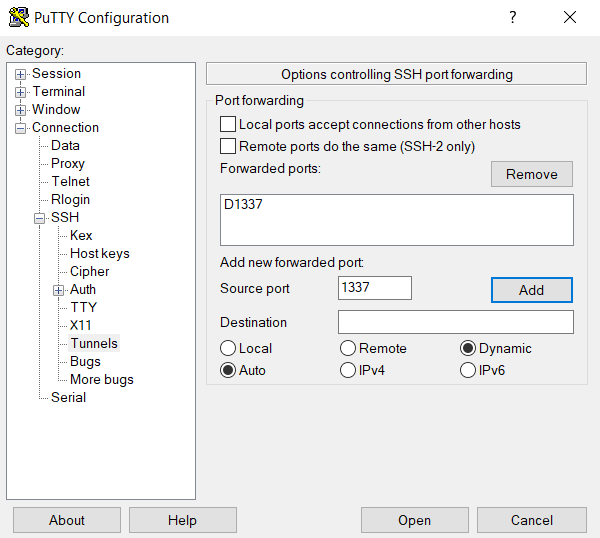
For Windows PuTTY users, configure ssh port forwarding by going to Connection–>SSH–>Tunnels on the PuTTY Configuration Menu. Once there, add a new forwarded port by making Source code
1337
and selecting Dynamic. Then click Add and you should see “D1337” under Forwarded Ports. Now connect to your Remarkable.
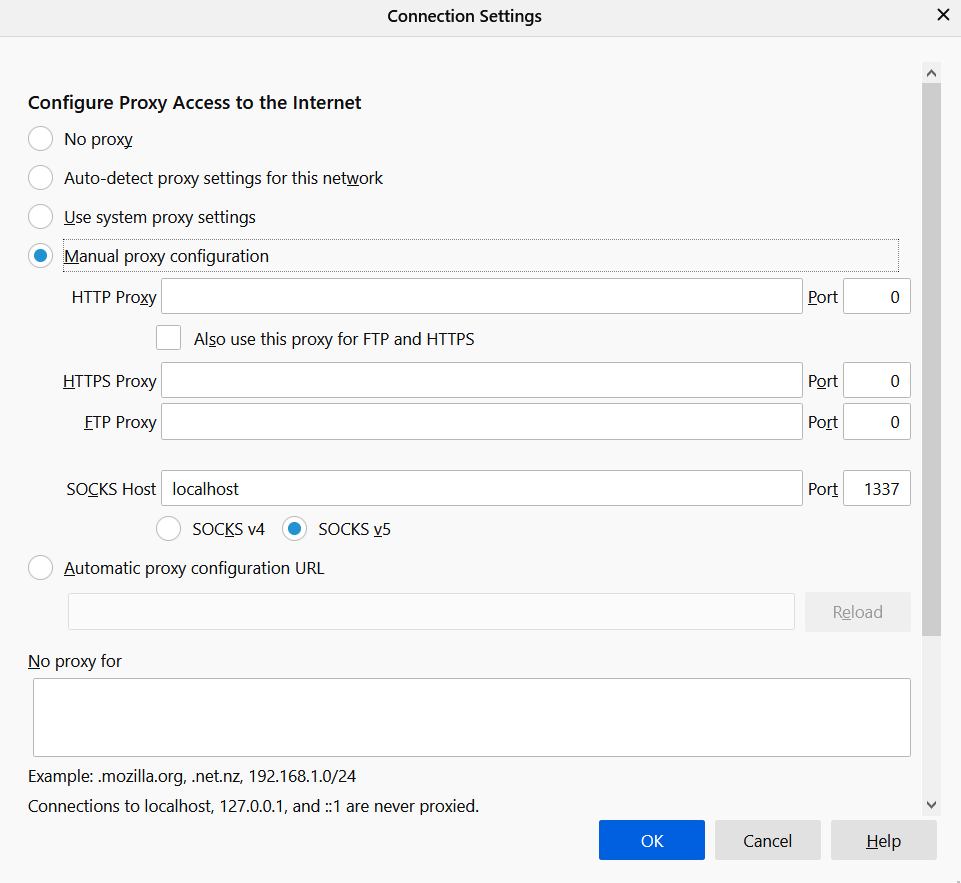
- Configure your browser to use a SOCKSv5 proxy. For example: in Firefox, go to Network Settings in
about:preferences
and select Manual Proxy Configuration. The SOCKS host should be
localhost
and the port
1337
Make sure SOCKS v5 is checked too. After you are done with this guide, remember to revert the settings to their original values, or else FireFox will continue to attempt to connect through the proxy. (You can use any browser, just look up how to.)
- Navigate to an HTTP page, like http://example.org/, and the captive portal should appear. Fill it out as usual.
- Your reMarkable should connect to the cloud at this point. Enjoy!
- NOTE: Firefox may present the error, “server_error_ocsp_try_server_later”. This is because while on SSH tunneling firefox can not contact the OCSP certificate validation server and may prevent you from proceeding through the splash screen. If this is the case, you can TEMPORARILY turn off OCSP validation under
Settings > Privacy & Security > Certificatesand deselect the option “Query OCSP responder servers to confirm the current validity of certificates”. Please re enable after you have successfully connected to wifi to preserve OCSP validations during normal browsing.
Connecting to a network with a password with characters unsupported by the on-screen keyboard
The Remarkable on-screen keyboard only supports a limited number of characters. If you want to connect to a WiFi network with such a password, you can manually edit /home/root/.config/remarkable/xochitl.conf via SSH to add your WiFi network configuration. The WiFi configuration part looks something like this:
[wifinetworks]
MyNetwork=@Variant(\0\0\0\b\0\0\0\x3\0\0\0\b\0s\0s\0i\0\x64\0\0\0\n\0\0\0\x6\0\x66\0o\0o\0\0\0\x10\0p\0r\0o\0t\0o\0\x63\0o\0l\0\0\0\n\0\0\0\x6\0p\0s\0k\0\0\0\x10\0p\0\x61\0s\0s\0w\0o\0r\0\x64\0\0\0\n\0\0\0\x6\0\x62\0\x61\0r)
The value part is encoded by QSettings from QT5 and contains the WiFi network ssid (network name), password and protocol (not sure which values are supported, at least psk). https://github.com/pascalw/remarkable-wifi-conf can be used to encode your network settings in the right format.
/lib/systemd/system/wpa_supplicant@.service instead seems to work too